
Create New Group
The information here is applicable to creating a new Group for Users, and for amending existing Groups.
Note: to amend and existing group, click the Group Name in Admin > Groups. This will display the Pages area for that group.
For a new group, in Admin > Groups click Add New Group - this displays the Group Pages with a blank Group Name and Description.
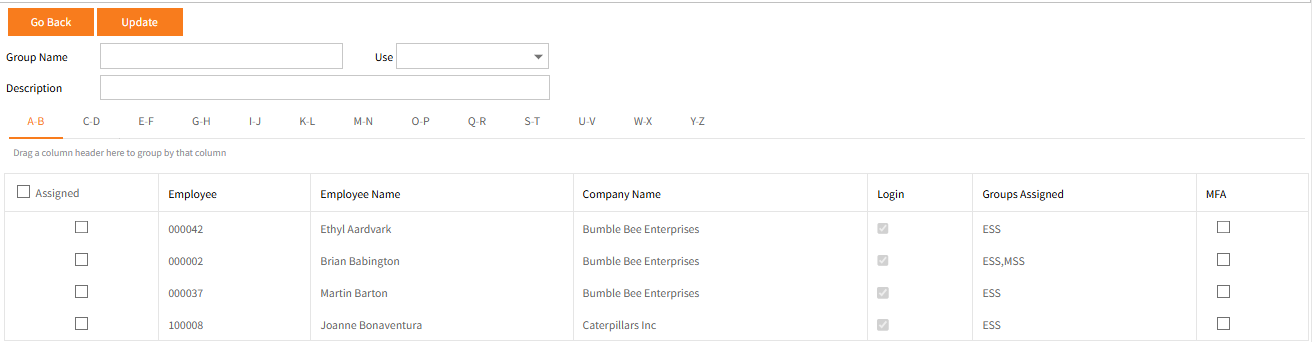
- Give the group an appropriate Group Name (or acronym) and Description
- To base all of the page the permissions for this group on another existing group's permissions, , select the existing group from the Use drop-down list.
- For example, you might be creating a second level Manager group and base this on a previously created top level Manager group.
Or you may copy the Administrator Group for any new group.
Ensure to make the appropriate changes to permissions, removing pages the new group should not be allowed to access or restrict the permissions in that page. Alternatively, consider beginning at the lower level, i.e. the group with fewer access permissions and tick the additional permissions for the new group.
In this way it is less likely to give a group access to something which should not be accessible.
- For example, you might be creating a second level Manager group and base this on a previously created top level Manager group.
- Users may be added to this new Group by clicking through each alphabetic tab and ticking the Assigned check-box for each of the users who should be members of this group.
- Each of the tabs in Employee Self-Service Kiosk's Menu containing the Pages has check-boxes for the same specifications.
Ticking some options will automatically tick others, for example ticking Display for a page should automatically tick the Assigned check-box.- Assigned: Ticking the first, top level Assign box (on the top left) will tick some other tick boxes within the same Pages section.
Ticking Assigned for a sub-menu will automatically tick the other security settings Display, Add, Edit, Delete for the same page. - Display: If users are to only view a certain page, tick the Display check-box for the relevant menu or sub-menu.
This will automatically tick the same page's Assigned box. - Add, Edit, Delete: Tick these options if the users in the group should be able to perform any of these functions fpr that page.
Note that there may be some screens where Employee Self-Service Kiosk is hard coded to deny access to add/edit/delete (particularly delete), despite permissions having them switched on.
Similarly, the Groups page may nit allow certain permissions to be set for certain pages.
- Assigned: Ticking the first, top level Assign box (on the top left) will tick some other tick boxes within the same Pages section.
- After each of Employee Self-Service Kiosk's Menu tabs have been reviewed, adding or removing page permissions as appropriate, have been completed click Update to save changes.
Note: Clicking Go Back during any time will return to the Groups page without saving changes.